PulseIQ Administrator Portal
Dashboard - UI Improvements
Moved the Date Range menu item from the top right corner to the top left-hand corner of the dashboard. The Date Range menu is located in the same row as the dashboard selection and modification buttons.
Added support for a custom date range in the Dashboard. This new option, "Custom Range", is located under the date range menu. Selecting this option will display the beginning and end date range selectors. Click Apply to update the dashboard widgets based on the selected date range.
The Designs widget has some enhancements that are covered in the "Designs - Organization Improvements" section below.
Designs - Organization Improvements
Additional Design Property Field
A field for Customer Name has been added to the Designs form.
Design View Sorting and Searching Improvements
The Design View now includes new filtering and sorting features to make it easier to find a design.
Advanced Design Search
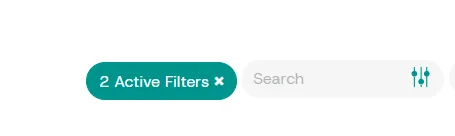
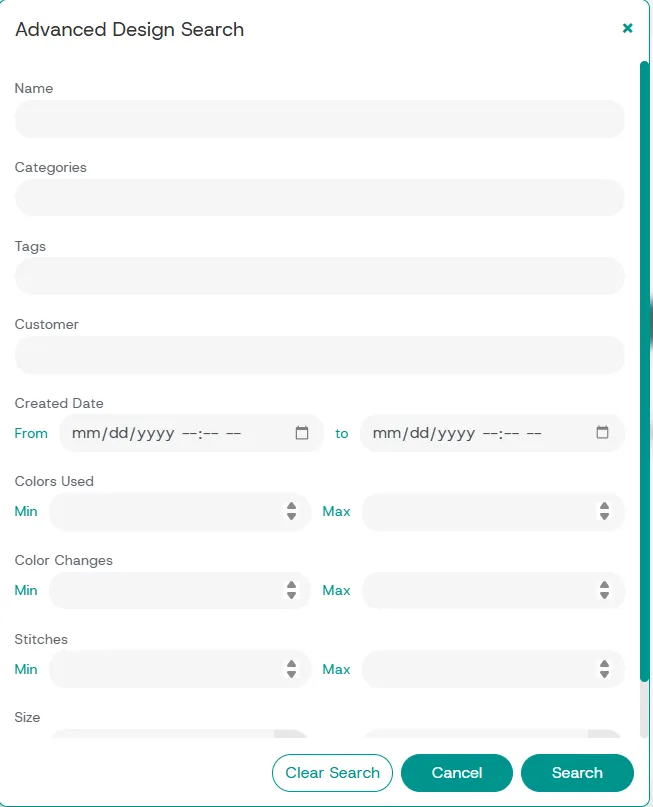
Clicking the Advanced Design Search button in the search field will display the window below. Advanced Design Search contains many options to filter your designs, including name, category, tags, customer name, created date, colors used, color changes, stitch count, and size. After entering the search values, click the Search button. The view will update to show the designs that match your search criteria. A label ("Active Filters") will appear beside the Search field indicating that the view has been filtered and how many filters have been applied. Clicking this label will clear your active filters. If you wish to edit your active filters, click the Advanced Design Search button again. Click the Clear Search button in Advanced Design Search to clear all fields and start over. This feature replaces the search fields that were previously available in the column headers for design list view.
Sorting Designs
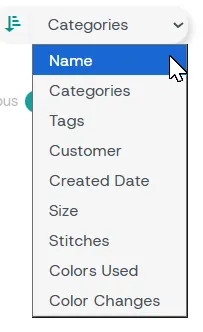
You can now sort designs using many design parameters. A new sort menu is displayed beside the search field. This menu is available to both thumbnail and list views. Select the sorting options from the menu. Sorting options include: Name, Categories, Tags, Customer Name, Created Date, Size, Stitches, Colors Used, and Color Changes. Click the Sort button to toggle between ascending and descending order.
Thumbnail View - Select All
A select all checkbox is now available in thumbnail view. Previously, this option was only available in list view. The Select All checkbox is in the top-left corner. Enabling it will select all visible designs. You can then unselect individual designs. Clearing the checkbox while all visible designs are selected will deselect them.
More Design Information Displayed
Design Hover pop-up: When hovering your mouse cursor over a design thumbnail, the pop-up window contains the following additional information: Categories, Tags, Customer Name and Created Date.
Design List View Columns: Added new columns to design list view. The Column Visibility menu includes the following additional column options: Tags, Customer Name and Created Date.
Design Information Window: The window that appears when you click a design in thumbnail view contains the following additional information: Tags and Customer Name.
Uploading Design Improvements
Added an option to enter the customer name when uploading design(s).
Added an option to skip existing designs when uploading. If the "Skip Existing" checkbox is enabled, existing designs with matching names won’t be uploaded again. If disabled, duplicates will be imported as new designs with a number added to the end of the name in parentheses. Examples: Design (1), Design (2).
Improvements to feedback when design(s) failed to upload.
Design Colorize Improvements
This version includes better handling of duplicate design names when using Save As. If a duplicate name is entered, it will return to the Colorize window instead of closing.
Improvements have also been made using Design Colorize with certain designs.
Designer Improvements
The Add Mascot function now has advanced design search and sorting functions to help you find the right design. These are the same as the Designs view Advanced Design Search and Sorting Designs features. Read the sections above for more information.
The Undo function now works properly to undo the deletion of part of a design.
Additional Design Worksheet Options
The design worksheet PDF has more customization options. The configuration of these options is located under Admin>Settings. You can now choose the following options.
Layout: Many (designs) per page or One per page
Barcode Type: Barcode or QR Code
Options to Show or Hide Design Information in Worksheets
This update includes options to show or hide the following:
- Stitches (stitch count)
- Size
- Start / End Distance
- Number of Trims
- Thread Usage
- Bobbin Usage
- Before and After Sewing Messages
- Needle Sequence (including thread details and color sample)
- Colors Used (includes color sample and estimated usage).
Machine Connection and Configuration Improvements
An issue with setting the Colorize option on the machine's configuration page has been resolved. In previous versions, the Colorize setting was always enabled, regardless of how it was configured for Tajima Connect machines.
New embroidery machines are now automatically set to assign needles to thread colors in the design (Colorize setting enabled in machine configuration). Previously, Colorize was disabled for new machines.
The IP Address button is hidden for inactive machines. Machines that are inactive can no longer have their IP address changed from the machine's configuration view.
Send to Panel Response Message Improvements
This version resolves an issue where the progress bar would not complete when sending designs to the panel of Tajima Correct machines. Previously, the progress bar would remain on screen, and you would not receive a confirmation even though the machine received the design. This applies only to the database communication mode.
Send Designs to Multiple Machines in Queue Mode
A feature has been added to send design(s) to multiple machines when in machine queue mode. If using multiple facilities, sending to multiple machines will limit the selection to sending design(s) to machines in the same facility.
Design Queue Improvements
Under Machine Details, adding designs to the queue is now easier. Advanced design search and sorting functions have been added to help you find the right design. These are the same as the Designs view Advanced Design Search and Sorting Designs features. Read the sections above for more information.
Sending of Maintenance Logs
You can now send the maintenance log file from a Tajima Connect machine to one or more email addresses by selecting the "Log Files" button in the Machine Details view.
Machine Events Design Filtering Improvements
In Machines view, you can already view events by selecting the machine and selecting View Events option. Advanced design search and sorting functions have been added to the filter events by design option to help you find the right design. These are the same as the Designs view Advanced Design Search and Sorting Designs features. Read the sections above for more information.
Operator Configuration Changes
Removed Guided Tours and Surveys for Operator user.
This version corrects issues in Designs view. The design category menu in the top right corner did not function when logged in as an operator. Additional improvements were made searching for Design Categories in in the Designs view when logged in as an operator.
Operator User Account is Now Optional
A new checkbox is added to the Operator configuration page in the User Information section called "User Account". When this is checked, a user account will be created for the operator. The following information is required when assigning a user account.
- A valid password
- An email or username (or both)
When an operator is created, and the User Account option is selected, a user will be created for the operator. If the User Account is unchecked, only the Operator will be created without a user account associated with the operator.
Editing an operator and unselecting the User Account checkbox will remove the user account.
A user license is not required for an operator account.
Operator Events Design Filtering Improvements
In Operators view, you can already view events by selecting the operator and selecting View Events option. Advanced design search and sorting functions have been added to the filter events by design option to help you find the right design. These are the same as the Designs view Advanced Design Search and Sorting Designs features. Read the sections above for more information.
Other Operator Changes
A new column named "User Email Address" has been added to the Operators Configuration view. This column shows the email address assigned to the operator if a user account exists.
A problem searching for operators in the Operators Configuration view has been resolved.
Filtering selections in the Operators view are now preserved between sessions.
Notifications
Local Hub Version Available
Improvements have been made to "Local Hub New Version Available" notifications. Only one notification is sent out for each company when a new version of the Local Hub installer is available. If a company has multiple facilities, a notification is sent once per facility.
Subscription Expiring Notification
A new "Subscription Expiring" notification has been added. This notification type will remind you of your subscription expiry date. It can be configured to send one or more notifications. Each is based on the number of days before expiry. As with other notifications, they can be configured to send the notification by email or push notification.
Users and Role Configuration
This version resolves an issue in which the Admin menu item was missing when the user was granted access to sub-menu items under the Admin menu.
An unneeded role permission named DesignDetails was removed.
The names of some role permission settings have been changed. Table below shows the name changes.
Original Permission Name | New Permission Name |
|---|---|
Color Type | Color Types |
Dashboard | Dashboards |
Needles | Default Needles |
DesignCategories | Design Categories |
Facility | Facilities |
LocalSetting | Local Hub |
Machine Category | Machine Categories |
Machine Compare | Machine Comparison |
Machines | Machine Configuration |
Live Machine Status | Machines |
MachineNeedles | Set Needle Colors |
Admin Settings Changes
Color Match Field
An issue has been resolved with the Color Match Field setting under Admin>Settings. Previously, this setting would always match needles to colors based on color name when a design is downloaded to a machine, and colorization was enabled. It now correctly matches color to needle by name or code based on this setting.
Help and Support
New Onboarding experience. A guided tour will introduce new users to PulseIQ features.
Guided Tours and Surveys can be canceled at any time by clicking the X button. Click the question mark (?) Resource Center button in the bottom right corner of the page to access the resource center containing a list of tutorials.
Subscription changes
Company Admins can now manage their subscriptions using the Subscriptions menu item. Administrators can purchase the Analytics level or user logins.
The Subscriptions menu item will be highlighted in orange if a subscription is about to expire in the next 30 days.

Subscription Expiry Banner
A banner will appear at the top of the Administrator portal to indicate your subscription status. The company admin will see the banner once every 30 days, 15 days, and 7 days before their subscription or trial expires. This is independent of the subscription expiry notifications.

Production Efficiency Calculation Enhancements
New options have been added for customizing production efficiency information and charts in the dashboard. These options are in the Admin - Settings screen in the Administrator Portal. You can now configure your production efficiency calculations based on goals or average machine speed. Additional settings have been added to the machine, machine category, operator and shift forms. (More information to be added later)
This feature is in testing.